So far in the series of Cucumber tutorial we have covered Feature files, Gherkins, Step Definitions, Annotations, Test Runner Class and many other things. There is no doubt that you cannot set up the BDD framework until you know all the concepts but there are still few more areas that are very important to know in the life of Cucumber Automation such as Cucumber Options, Regular Expressions, Page Object factory and few others. Let's start with Cucumber Options.
What is Cucumber Options?
In layman language, @CucumberOptions are like property files or settings for your test. Basically @CucumberOptions enables us to do all the things that we could have done if we have used cucumber command line. This is very helpful and of utmost importance, if we are using IDE such eclipse only to execute our project. You must have noticed that we set a few options in the 'TestRunner' class in the previous chapter.
TestRunner Class
package cucumberTest;

import org.junit.runner.RunWith;
import cucumber.api.CucumberOptions;
import cucumber.api.junit.Cucumber;

@RunWith(Cucumber.class)
@CucumberOptions(
		features = "Feature"
		,glue={"stepDefinition"}
		)

public class TestRunner {

}
So in the above example, we have just set two different Cucumber Options. One is for Feature File and the other is for Step Definition file. We will talk about it in detail now but with this, we can say that @CucumberOptions are used to set some specific properties for the Cucumber test.
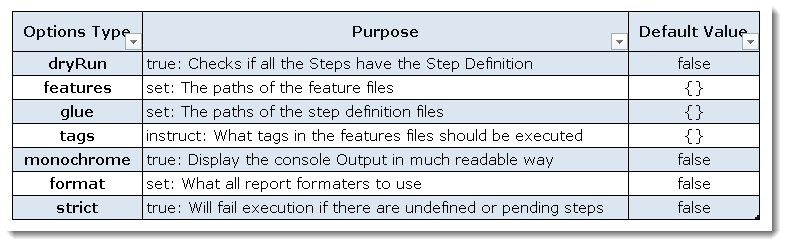
Following Main Options are available in Cucumber:
Dry Run
dryRun option can either set as true or false. If it is set as true, it means that Cucumber will only check that every Step mentioned in the Feature File has corresponding code written in Step Definition file or not. So in case any of the functions are missed in the Step Definition for any Step in Feature File, it will give us the message. For practice just add the code 'dryRun = true' in TestRunner class:
TestRunner Class
package cucumberTest;

import org.junit.runner.RunWith;
import cucumber.api.CucumberOptions;
import cucumber.api.junit.Cucumber;

@RunWith(Cucumber.class)
@CucumberOptions(
		features = "Feature"
		,glue={"stepDefinition"}
		,dryRun = true
		)

public class TestRunner {

}
Now give it a run by Right Click on TestRunner class and Click Run As > JUnit Test. Cucumber will run the script and the result will be shown in the left-hand side project explorer window in JUnit tab.
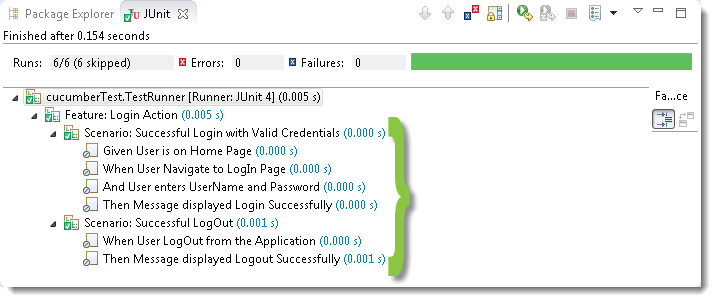
Take a look at the time duration at the end of the every Steps, it is (0.000s). It means none of the Step is executed but still, Cucumber has made sure that every Step has the corresponding method available in the Step Definition file. Give it a try, remove the '@Given("^User is on Home Page$")' statement from the Test_Steps class and run the TestRunner class again. You would get the following message:

Monochrome
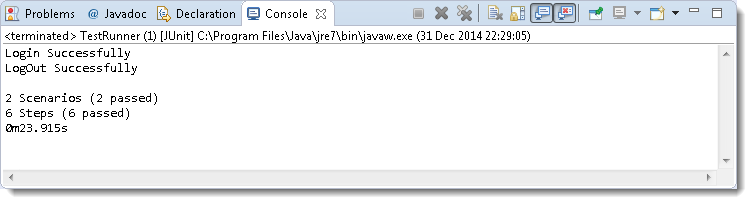
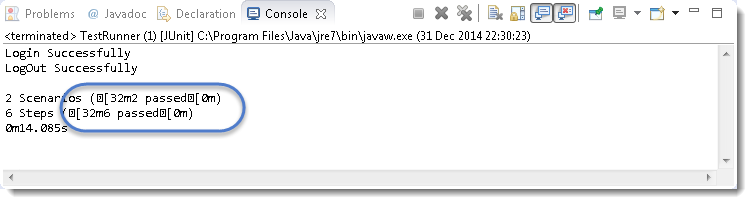
This option can either set as true or false. If it is set as true, it means that the console output for the Cucumber test are much more readable. And if it is set as false, then the console output is not as readable as it should be. For practice just add the code 'monochrome = true' in TestRunner class:
TestRunner Class
package cucumberTest;

import org.junit.runner.RunWith;
import cucumber.api.CucumberOptions;
import cucumber.api.junit.Cucumber;

@RunWith(Cucumber.class)
@CucumberOptions(
		features = "Feature"
		,glue={"stepDefinition"}
		,monochrome = false
		)

public class TestRunner {

}
Now give it a run by Right Click on TestRunner class and Click Run As > JUnit Test. Cucumber will run the script and Console Output will display like this:
This time change the value from true to false and run the TestRunner class again. This time the Console Output will look like this:
Features
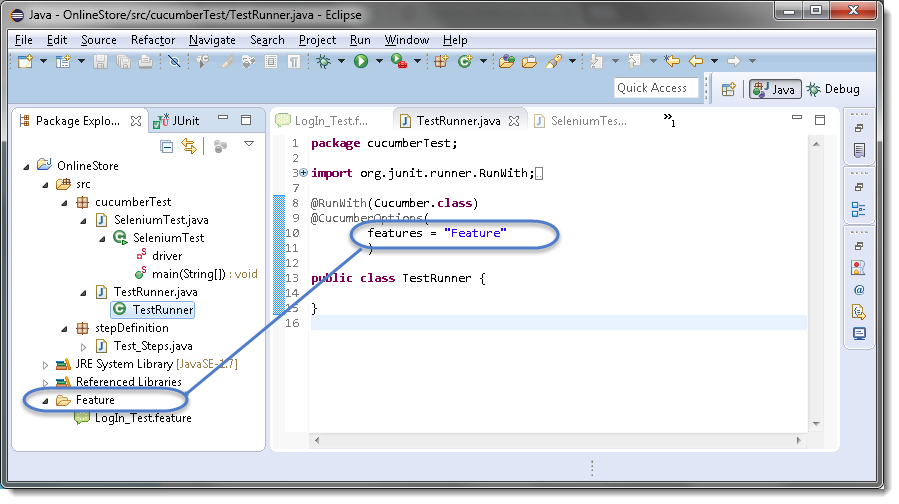
Features Options helps Cucumber to locate the Feature file in the project folder structure. You must have notices that we have been specifying the Feature Option in the TestRunner class since the first chapter. All we need to do is to specify the folder path and Cucumber will automatically find all the '.features' extension files in the folder. It can be specified like:
features = "Feature"
Or if the Feature file is in the deep folder structure
features = "src/test/features"
Glue
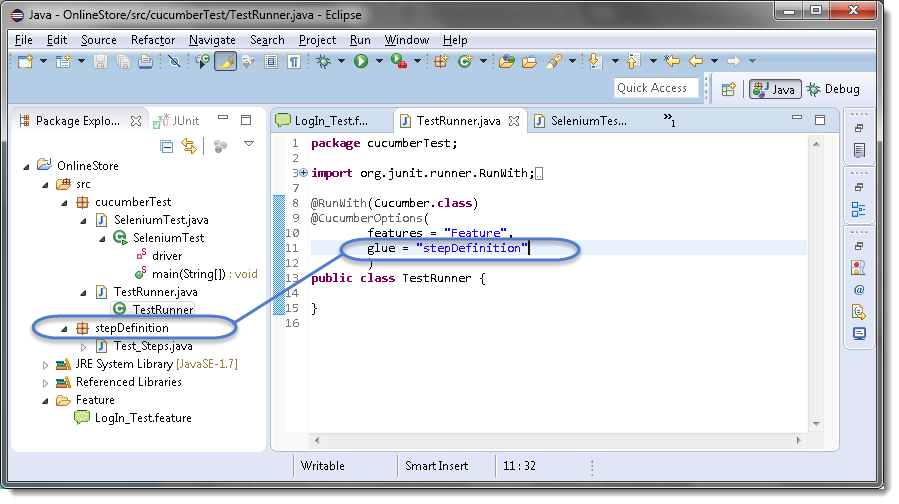
It is almost the same think as Features Option but the only difference is that it helps Cucumber to locate the Step Definition file. Whenever Cucumber encounters a Step, it looks for a Step Definition inside all the files present in the folder mentioned in Glue Option. It can be specified like:
glue = "stepDefinition"
Or if the Step Definition file is in the deep folder structure
glue = "src/test/stepDeinition"
Format
Format Option is used to specify different formatting options for the output reports. Various options that can be used as for-matters are:
Pretty: Prints the Gherkin source with additional colors and stack traces for errors. Use below code:
format = {"pretty"}
HTML: This will generate a HTML report at the location mentioned in the for-matter itself. Use below code:
format = {"html:Folder_Name"}
JSON: This report contains all the information from the gherkin source in JSON Format. This report is meant to be post-processed into another visual format by 3rd party tools such as Cucumber Jenkins. Use the below code:
format = {"json:Folder_Name/cucumber.json"}
JUnit: This report generates XML files just like Apache Ant’s JUnit report task. This XML format is understood by most Continuous Integration servers, who will use it to generate visual reports. use the below code:
format = { "junit:Folder_Name/cucumber.xml"}
Conclusion
@CucumberOptions acts as the property file for your test. It gives you, from inside the runner class, everything you would otherwise pass on the Cucumber command line — which matters when you are running the whole project from Eclipse.
Four options were covered in detail. features points Cucumber at the folder holding your feature files, and it picks up every .feature file inside, whether that path is simply "Feature" or something deeper like "src/test/features". glue does the same job for step definitions, telling Cucumber which package to search when it meets a step. dryRun = true executes nothing but verifies that every step in the feature file has a matching method — the giveaway is the 0.000s duration against each step, and removing a @Given from Test_Steps shows you the failure message it produces. monochrome controls how readable the console output is.
We also looked at the reporting formats: pretty for coloured Gherkin output with stack traces, html for a browsable report, json for post-processing by tools such as Cucumber Jenkins, and junit for the XML that most CI servers consume.